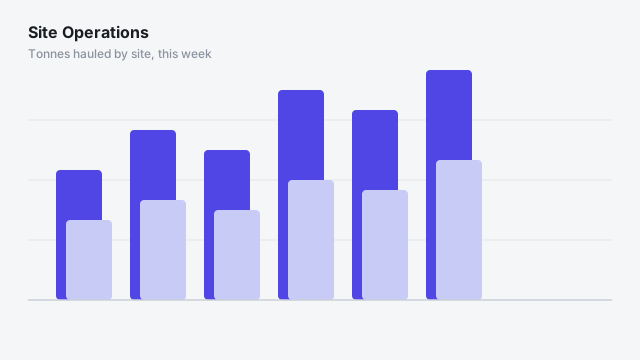
Site operations
"Tonnes hauled rose 6% week-on-week, led by North Pit's 8% gain — truck utilisation held steady despite the added volume."
Sign-in isn't configured on this server yet — an admin needs to set up Microsoft SSO or email sign-in in .env.
Drop one visual on a report. Write the story you want told, once. Narrator turns whatever rows are on screen into a plain-English narration — and rewrites it automatically every time a filter, slicer or cross-highlight changes the data underneath it.
First report free · Encrypted at rest · Sign in with Microsoft or a one-time email link
Example narrations, generated by Narrator from report layouts like these.
"Tonnes hauled rose 6% week-on-week, led by North Pit's 8% gain — truck utilisation held steady despite the added volume."
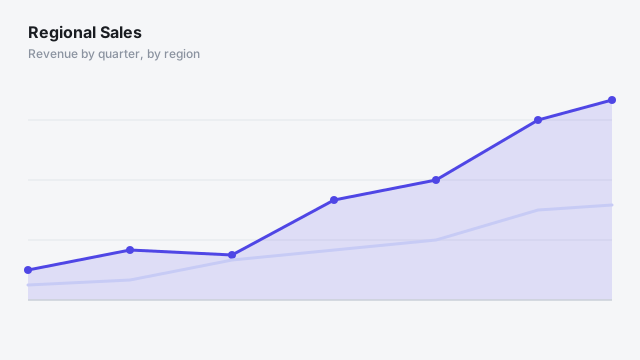
"Revenue grew 12% quarter-on-quarter, driven mainly by the West region — East's flat growth is worth a look before next quarter's targets are set."
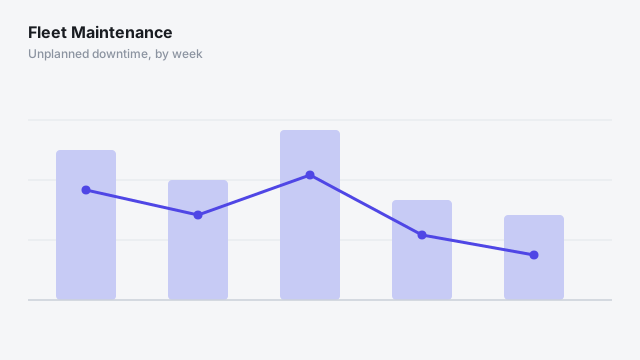
"Unplanned downtime fell 15% this month after the North Pit fleet's service window — Truck 14 remains the outlier with three call-outs."
No sign-in needed — write a prompt and generate a narration over sample data below.
Rewrites the narration automatically as filters, slicers and cross-highlights change — no refresh button, no manual re-run.
Write the story once. Everyone looking at the report gets the same live narration, told exactly the way you specified.
Rename, rewrite or retune a prompt whenever you like — every report already pointing at it keeps working, unchanged.
Bind whichever columns and measures matter for that report — Narrator reads the rows currently on screen, not a fixed schema.
Prompts, cached narrations and request logs are AES-256 encrypted wherever they're stored, and every endpoint requires a rotatable secret — built for confidential business data.
The Microsoft account you already use for Power BI, or a one-time link emailed to you. No separate password to create, remember or lose.
First report free — sign in and write your first prompt in a couple of minutes.
Every prompt you own, narrated as one row each with only its most recent output — name, latest output, refresh timestamp and your username. Not generated yet.
Paste this into Power BI's Get Data > Web dialog — it takes no token itself.
Required alongside the URL — when Power BI prompts for credentials, choose Web API key and paste this in (or add it as an Authorization header under Advanced). Never paste it into the URL itself — that's what a plain query-string token would get written into the saved report file.
Live, always-current data instead of a periodic refresh — connects Power BI straight to a database instead of a URL. Not generated yet.
In Power BI: Get Data > PostgreSQL database, enter the Server and Database above, set Data Connectivity mode to DirectQuery, then on the credentials screen choose Database and paste in the Username and Password. The username and password are generated for you — copy them now, they won't be shown again.
Enter the code sent to . It expires in 15 minutes.